Built for Windows 10 and Windows 11

BetterScreenShot

BetterScreenShot captures screenshots, records your screen, extracts text, and keeps recent work organized on your Windows PC. You can move from capture to a finished file without sending your content to a hosted service.

The Microsoft Store listing is published by Güney Karagöz. Product ID: 9N545T46LBDT.

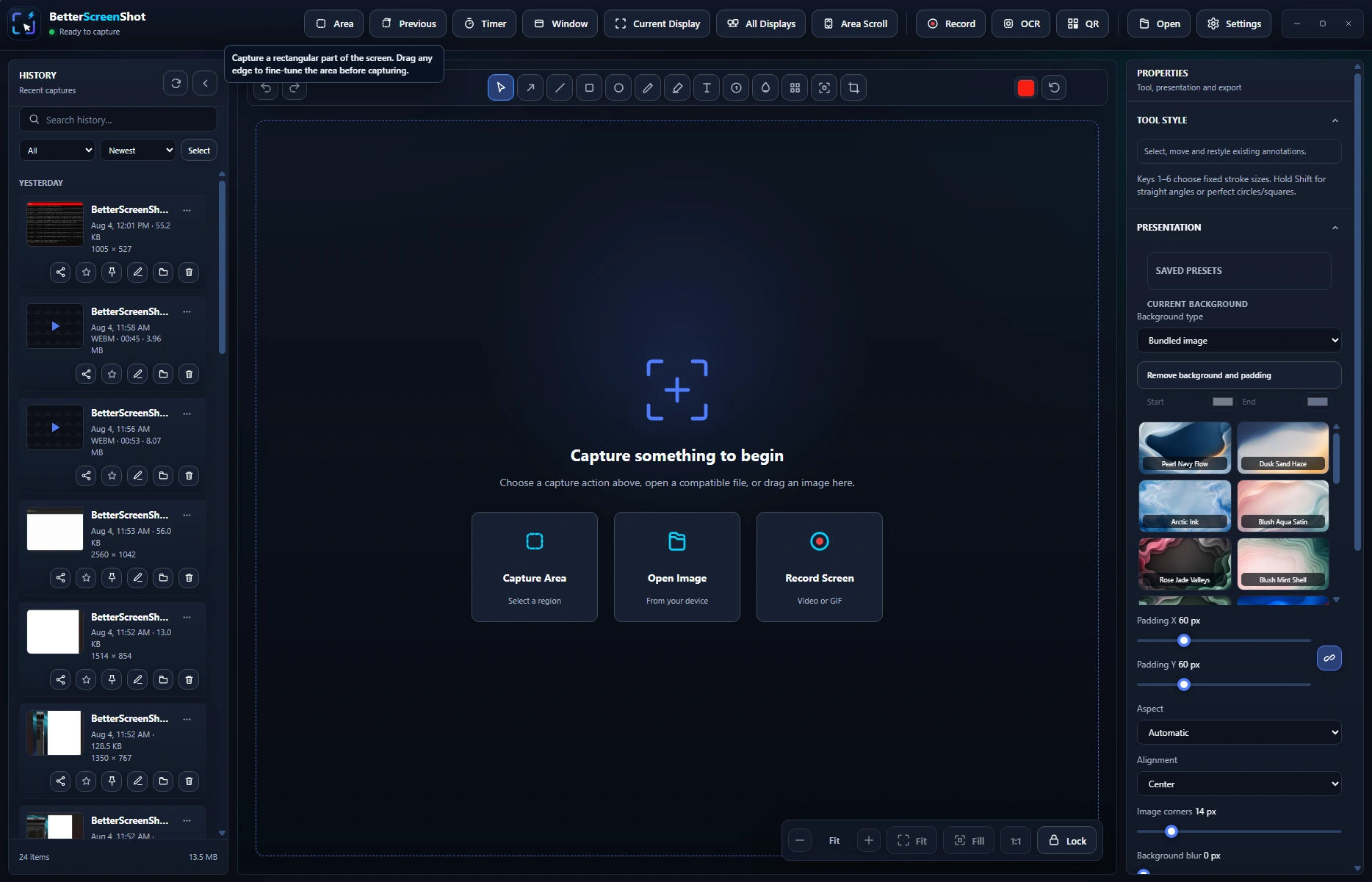
BetterScreenShot workspace with capture modes, recent History, annotation tools, and screenshot presentation controls
No account requiredLocal HistoryBuilt for Windows
CaptureAreas, windows, displays, scrolling content, and webpages
AnnotateText, arrows, steps, blur, pixelation, crop, and presentation tools
RecordMP4, WebM, and GIF with optional audio and camera
Keep controlLocal processing, History, projects, backup, and recovery

You can capture the screen and finish the result without changing tools.

BetterScreenShot covers the work that usually follows a Windows screenshot. You can explain a problem, protect private details, prepare a polished image, record a walkthrough, or recover interrupted work from the same local workspace.

You can capture the exact area you need.

Choose an area, the previous area, a window, the current display, every display, a timer, desktop scrolling capture, or a full webpage through the optional browser extension.

  • Configurable global shortcuts keep common captures close.
  • Selection refinement helps you adjust the capture before confirming it.
  • Quick Access can copy, save, annotate, float, or reopen the latest result.

You can explain what matters before you share it.

The editor includes arrows, lines, shapes, text, counters, pencil marks, highlighter, spotlight, crop, blur, and pixelation. Objects remain editable while you work, and portable .bssproj files preserve projects you want to revisit.

  • Presentation controls add backgrounds, padding, rounded corners, and shadows.
  • Local OCR extracts text from captures and imported images.
  • QR recognition reads supported codes from captured images.

You can record a process and edit the result.

Record an area, window, or display with optional microphone audio, computer audio, cursor highlighting, click indicators, keystroke display, and a camera bubble. You can pause, annotate, trim, and export as MP4, WebM, or GIF.

  • Protected recording controls stay out of the captured result.
  • Recording projects and Recovery Center help protect unfinished work.
  • Output settings cover quality, frame rate, resolution, and supported hardware encoding.

You can find recent work without building a cloud library.

History keeps app-managed local copies with thumbnails, search, filters, tags, favorites, and configurable retention. A normal Save creates a separate permanent file in your chosen folder.

  • Recovery Center surfaces interrupted recordings, exports, scrolling captures, and image autosaves.
  • Local backups can include settings, History data, managed captures, and projects.
  • Saved files remain separate from the temporary History copy.

The editor keeps capture, annotation, export, and History within reach.

BetterScreenShot editor in light mode with local History, an annotation canvas, shadow settings, and export actions

The editor is built for screenshots that need an explanation.

You can add editable objects, reorder them, adjust the canvas, apply presentation backgrounds, copy the result, save a permanent file, print it, or export a project for later editing.

BetterScreenShot settings for Quick Access and local History

Your workflow remains configurable.

Settings cover shortcuts, capture output, Quick Access, local History, recording, saving, backup, diagnostics, and automation.

BetterScreenShot Quick Access showing a completed area capture

Your latest result stays ready.

Quick Access gives you the next useful action without forcing the full editor to stay open.

You can send a requested webpage capture directly to BetterScreenShot.

The extension captures only after you choose the action. The completed image, current page title, and URL transfer locally to the installed Windows app through native messaging.

  • The extension can capture long webpages and many nested scrolling areas.
  • BetterScreenShot opens the result for annotation, copying, and saving.
  • The extension does not upload captured content to a publisher server.
  • Protected browser pages and changing content can limit a full-page capture.
  • Chrome, Edge, and Brave use the same local native messaging workflow when the extension is installed.

Your captures stay on your device unless you choose to move or share them.

BetterScreenShot does not require an account, advertising, cloud upload, or analytics. Captures, recordings, OCR results, settings, and History remain on the Windows PC until you copy, save, drag, export, or share a file through another application.

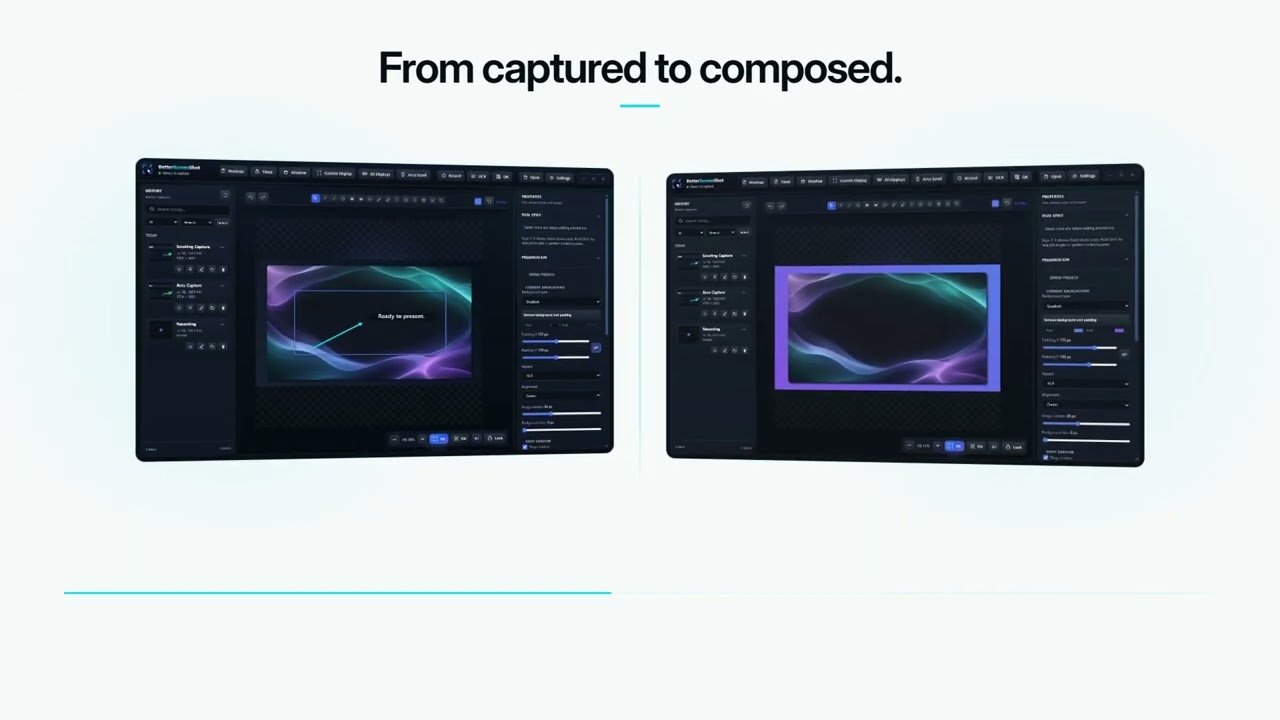
You can see capture, editing, recording, and the local workflow in one demonstration.

The walkthrough shows screenshot capture, the editor, screen recording, and the local result workflow. Open it on YouTube.

BetterScreenShot is available free from the Microsoft Store.

Install the current Store release on a supported Windows 10 or Windows 11 PC. The listing provides Windows-managed package trust and normal Store updates.

Open the Microsoft Store listing