
What browser capture does
The BetterScreenShot browser extension captures the active webpage at your request, combines it into a full-page image, and transfers the result locally to the installed BetterScreenShot Windows application.
It supports:
- Normal document scrolling.
- Large nested application or content scrollers.
- Progress and error status.
- Local transfer into BetterScreenShot for editing and saving.
Browser capture is recommended for full webpages because normal desktop scrolling capture cannot reliably control every dynamic website.
Requirements
- BetterScreenShot installed on the same Windows computer.
- Google Chrome, Microsoft Edge, or Brave.
- The matching BetterScreenShot browser extension.
- BetterScreenShot's local browser connection registered for that browser.
Install from BetterScreenShot
- Open Settings > Advanced.
- Find Browser Integration.
- Choose Install for Chrome, Install for Edge, or Install for Brave.
- BetterScreenShot repairs the local desktop connection and opens the relevant browser marketplace.
- Install the extension only when its official listing is available.
Install BetterScreenShot Browser Capture from the official Chrome Web Store or Microsoft Edge Add-ons listing. Brave can use the Chrome Web Store listing.
If a marketplace reports that the extension is unavailable, do not install a copy from an unrelated download page. Try the other official listing or contact support.
Capture a webpage
- Open the page you want to capture.
- Wait for the page's important images and content to load.
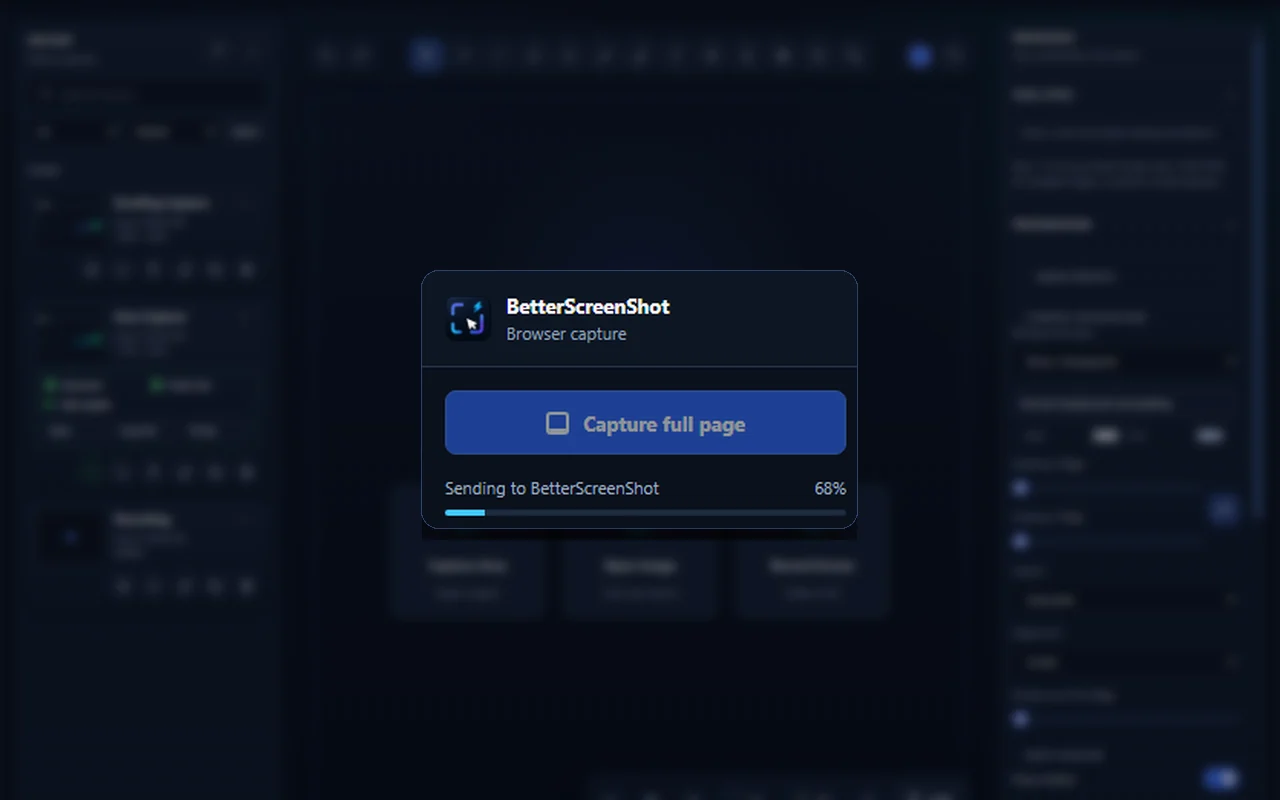
- Open the BetterScreenShot extension.
- Start full-page capture.
- Keep the tab open while it scrolls and captures.
- BetterScreenShot restores the page's previous scroll position after the attempt.
- The completed image opens in the Windows app.
Avoid interacting with the page during capture.
Pages that may not capture normally
Browsers restrict extensions on some pages, including browser settings, extension pages, internal chrome:// or edge:// pages, certain marketplace pages, and other protected browser surfaces.
Capture can also be affected by:
- Infinite feeds that load forever.
- Videos, animations, carousels, and changing advertisements.
- Sticky or fixed elements that redraw while scrolling.
- Login-expired content.
- Cross-origin frames with protected behavior.
- Very large pages that exceed browser or memory limits.
For a dynamic page, pause animations when possible and capture the smallest complete state you need.
If the extension cannot connect
- Confirm BetterScreenShot is installed and running.
- Open BetterScreenShot Settings > Advanced > Browser Integration.
- Select the install button for the same browser again. This safely repairs the local connection before opening the marketplace.
- Confirm the extension is enabled in the browser.
- Restart the browser.
- Try a simple public webpage.
If Chrome, Edge, and Brave are all installed, repair only the browser you are testing.
If the page is incomplete or repeated
- Wait for the page to finish loading before capture.
- Close cookie banners or floating dialogs first.
- Avoid moving the pointer or scrolling during capture.
- Try the largest meaningful nested content region instead of an endless feed.
- Refresh the page and try once more.
- Record the page type and whether it uses a normal scrollbar or an inner content panel.
Do not send a private page URL or screenshot to support unless you have reviewed and approved the content.
Browser-capture privacy
The extension operates only after you deliberately start a capture. It does not continuously monitor tabs or keep a browsing-history database.
During capture it handles:
- Visible content of the active webpage as image pixels.
- The current page title and URL.
- Temporary capture progress and technical reconstruction information.
The image, page title, and URL are transferred locally through the browser's native messaging connection to BetterScreenShot on the same computer. They are not sent to the developer's servers.
The extension contains no advertising, analytics, or remotely downloaded executable code.
Read the full browser-extension privacy policy at the public privacy-policy page linked from the browser listing.
Remove browser capture
Remove or disable the extension through your browser's Extensions page. This prevents future browser captures. It does not delete screenshots already transferred to BetterScreenShot or files you saved.
You can clear the extension's local status data through the browser's extension controls.