
Requirements
BetterScreenShot is a 64-bit Windows desktop application for:
- Windows 11.
- Windows 10 version 1903 or later.
Some features also depend on your Windows hardware and permissions. Examples include microphone and camera recording, computer-audio capture, HDR displays, hardware video encoding, and HEIC/HEIF image decoding.
This guide documents BetterScreenShot v0.5.47 and above. Confirm the installed version in Settings > About because Microsoft Store rollout timing can vary by device and market.
Install and update
Install BetterScreenShot through its Microsoft Store listing. Windows handles package trust, installation, and normal Store updates.
To check the installed version:
- Open BetterScreenShot.
- Select Settings.
- Open About.
- Read the version shown under Application.
To check for an update, use Settings > About > Check now or open the app's Microsoft Store page.
First launch
On first launch, BetterScreenShot opens its main workspace and keeps a system-tray icon available for capture shortcuts.
Windows may ask for permission when you first use a feature that needs:
- Screen capture.
- Microphone access.
- Camera access.
- Startup behavior.
- Browser native messaging.
Only enable permissions for features you plan to use. You can review microphone and camera access later in Windows Settings > Privacy & security.
Understand the system tray
Closing the main BetterScreenShot window normally hides it instead of quitting. This allows global capture shortcuts to keep working.
To reopen BetterScreenShot:
- Find the BetterScreenShot icon in the Windows notification area.
- Select the icon or choose the open action from its menu.
To exit completely, choose Quit from the BetterScreenShot tray menu.
If you cannot find the icon, select the Windows hidden-icons arrow first.
Take your first screenshot
- Open BetterScreenShot.
- Select Area.
- Drag across the part of the screen you want.
- Adjust an edge if needed.
- Confirm the selection.
After capture, BetterScreenShot can show Quick Access with actions such as Copy, Save, Annotate, or Float, depending on your settings.
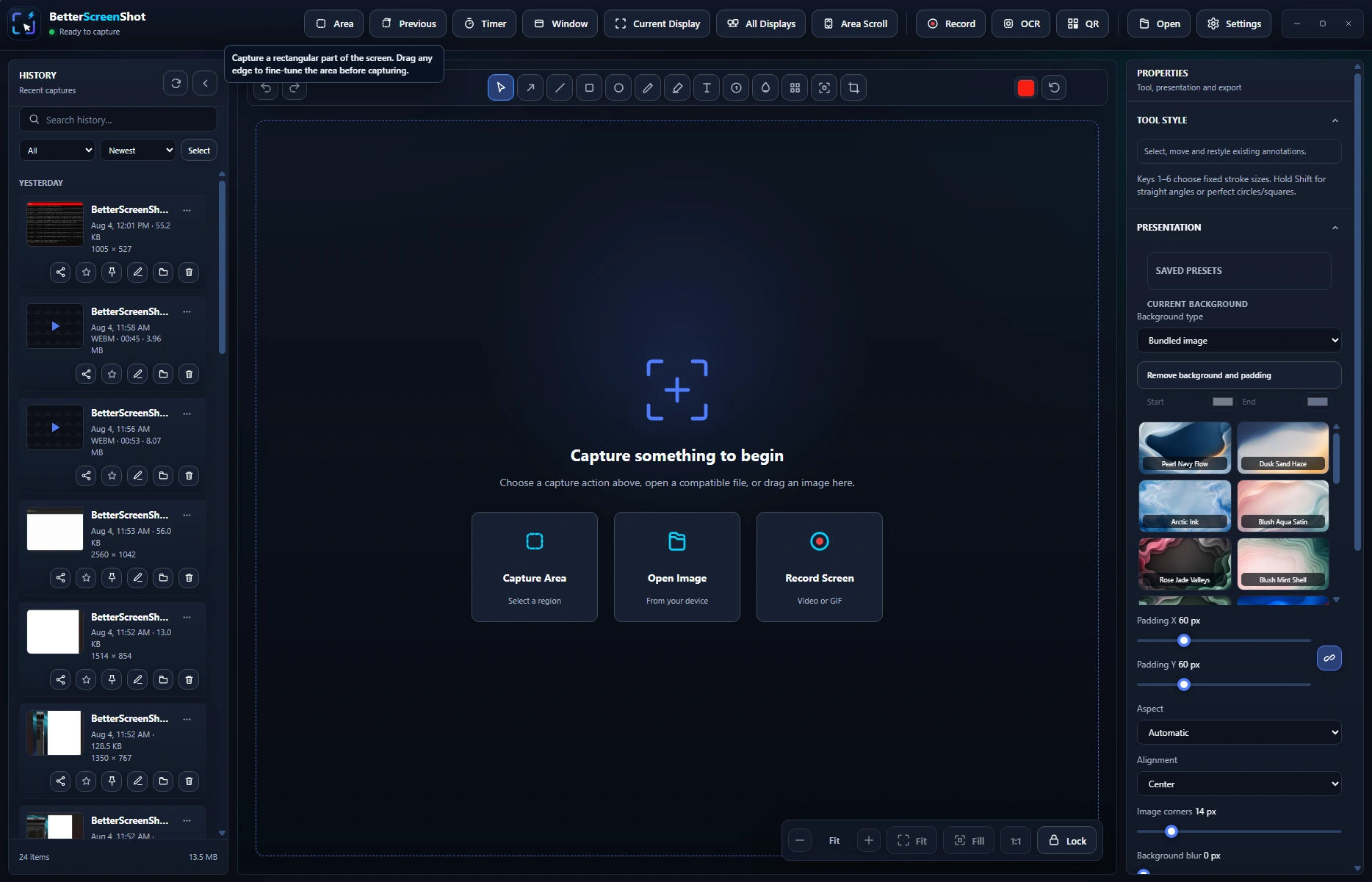
Save versus History
This distinction matters:
- History keeps a temporary local working and recovery copy.
- Save creates a normal permanent image in your configured folder or a location you choose.
If you want to keep a screenshot outside BetterScreenShot, use Save or enable automatic saving in Settings > Screenshots.
Deleting an item from History removes the app-managed temporary copy and internal editable project. It does not delete a separate saved file, an exported .bssproj, or an external image you opened.
Default keyboard shortcuts
| Action | Default shortcut |
|---|---|
| Scrolling capture | Ctrl+Shift+2 |
| Timed capture | Ctrl+Shift+3 |
| Previous area | Ctrl+Shift+4 |
| Area capture | Ctrl+Shift+5 |
| Current display | Ctrl+Shift+6 |
| All displays | Ctrl+Shift+7 |
| Window capture | Ctrl+Shift+8 |
| Screen recording | Ctrl+Shift+9 |
| OCR with line breaks | Ctrl+Shift+O |
| Compact OCR text | Ctrl+Alt+O |
You can change shortcuts in Settings > Shortcuts.
Print Screen can be assigned to BetterScreenShot when Windows and other applications allow it. Win+Shift+S belongs to Windows Snipping Tool on many systems and cannot always be replaced. A configurable BetterScreenShot shortcut is the most reliable alternative.
Choose what happens after a capture
Open Settings > Quick Access to choose the actions and behavior of the result overlay. Open Settings > Screenshots to choose output format, pointer behavior, scaling, and capture quality. Use Settings > General > Save Locations for screenshot and recording folders.
Typical workflows:
- Fast copy: Capture, then paste into chat, email, or a document.
- Permanent file: Capture, choose Save, and keep the file in your screenshot folder.
- Annotate: Capture, open the editor, add explanations, then Save or Copy.
- Reference: Capture and Float it above other windows.
- Google Drive link: Finish a supported screenshot, GIF, or recording, then explicitly share that one rendered result to your own connected Drive.
Open an existing image
Select Open in BetterScreenShot or use Windows Open with BetterScreenShot for a supported image. Common inputs include PNG, JPEG, WebP, HEIC, and HEIF. HEIC and HEIF require a compatible Windows image decoder when the built-in browser engine cannot decode the file.
Opening an external file does not transfer ownership to BetterScreenShot. The original stays where it is unless you deliberately save over it through Windows.
Recommended first settings
Review these sections:
- General: Theme and startup behavior.
- Shortcuts: Keyboard controls and Print Screen.
- Quick Access: Result actions after capture.
- Screenshots: Format, folder, cursor, and automatic saving.
- Recording: Defaults for screen recordings.
- Sharing: Optional Google Drive connection and managed-link privacy.
- History: Retention, search, local projects, and recovery behavior.
- Annotate: Editor defaults and project autosave.
- Advanced: Browser integration, OCR, backup, diagnostics, and automation.
- About: Version, updates, and support contact.
If something does not work
Start with the Troubleshooting guide. Preserve unfinished work before restarting. Use Quick Access and Floating References, Studio Video Editor, or Google Drive Sharing for those workflows. If you need support, use the checklist in Contact Support.